> ## Documentation Index
> Fetch the complete documentation index at: https://docs.chartdb.io/llms.txt
> Use this file to discover all available pages before exploring further.
# Supabase Integration
> Connect your Supabase database to ChartDB with OAuth authentication and automatic schema sync
ChartDB integrates directly with [Supabase](https://supabase.com) using OAuth authentication, allowing you to import and automatically sync your Supabase PostgreSQL database schema without manually entering connection strings.
ChartDB only reads your database schema metadata. It does not access your actual data.
## Key Benefits
Connect with your Supabase account using OAuth - no connection strings needed
Your schema automatically syncs every hour to stay up-to-date
No need to manually manage or store database credentials
Visual diagrams that stay in sync with your Supabase database
***
## Connect Your Supabase Database
From the [ChartDB homepage](https://app.chartdb.io/), click **New Diagram** to open the diagram creation dialog.
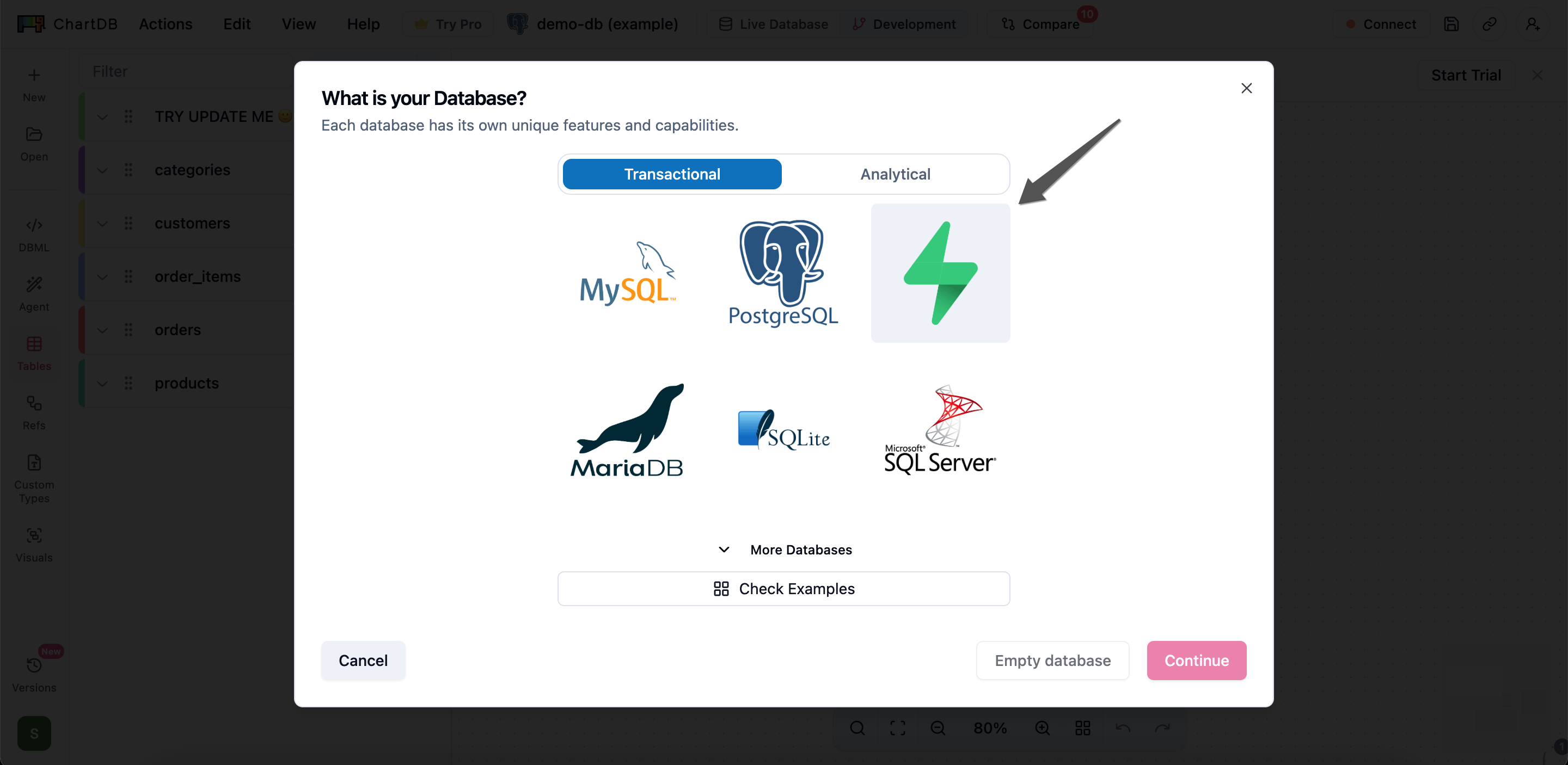
In the database selection screen, choose **Supabase** (the green lightning bolt icon), then click **Continue**.
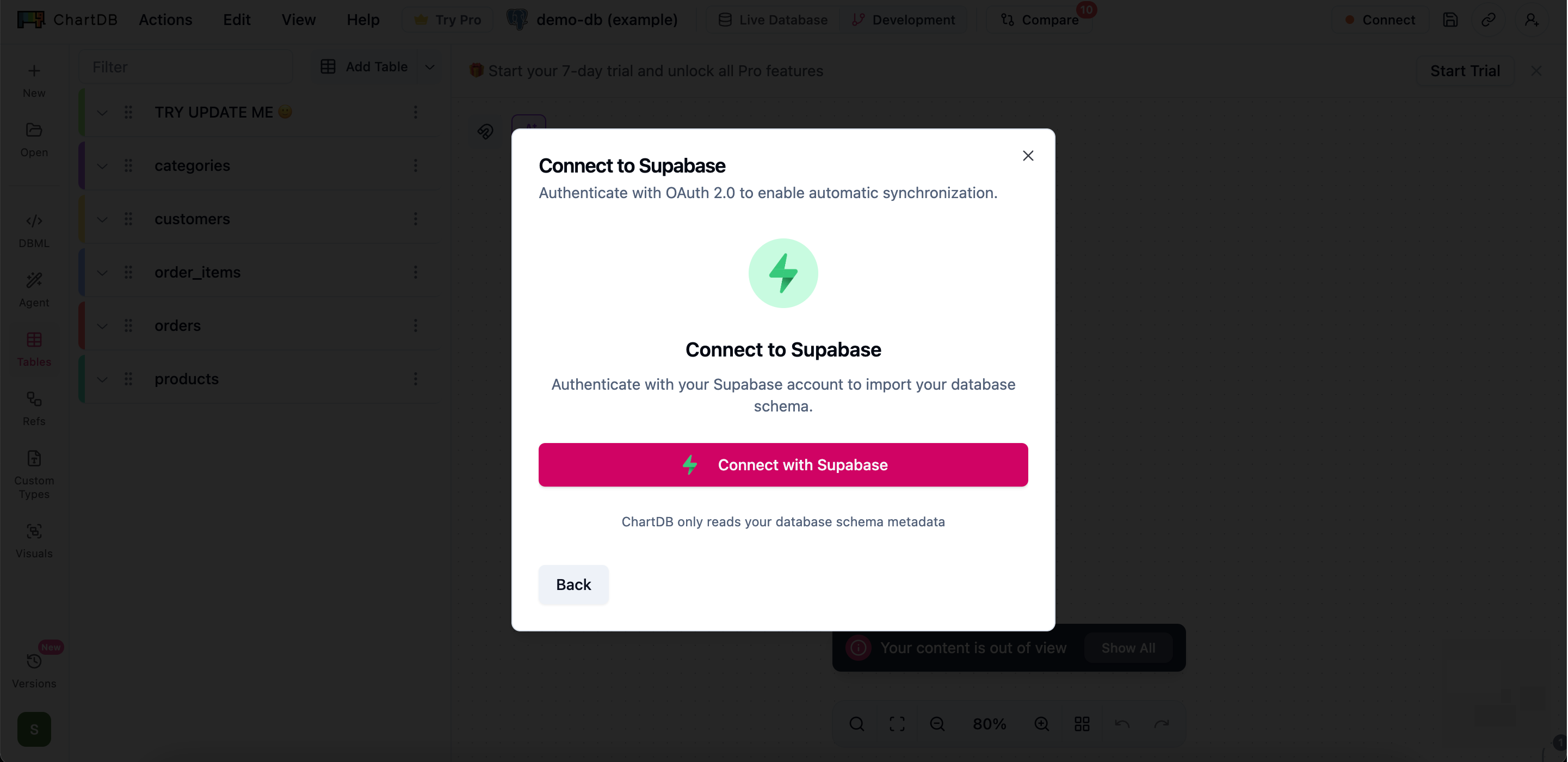
 On the import method screen, select **Cloud Platforms** which shows the OAuth option with BigQuery, Snowflake, and Supabase logos.
Click the **Connect with Supabase** button to initiate the OAuth flow.
On the import method screen, select **Cloud Platforms** which shows the OAuth option with BigQuery, Snowflake, and Supabase logos.
Click the **Connect with Supabase** button to initiate the OAuth flow.
 A popup window will open directing you to the Supabase authentication page. Log in with your Supabase account credentials and authorize ChartDB to access your projects.
Make sure popups are enabled for ChartDB in your browser.
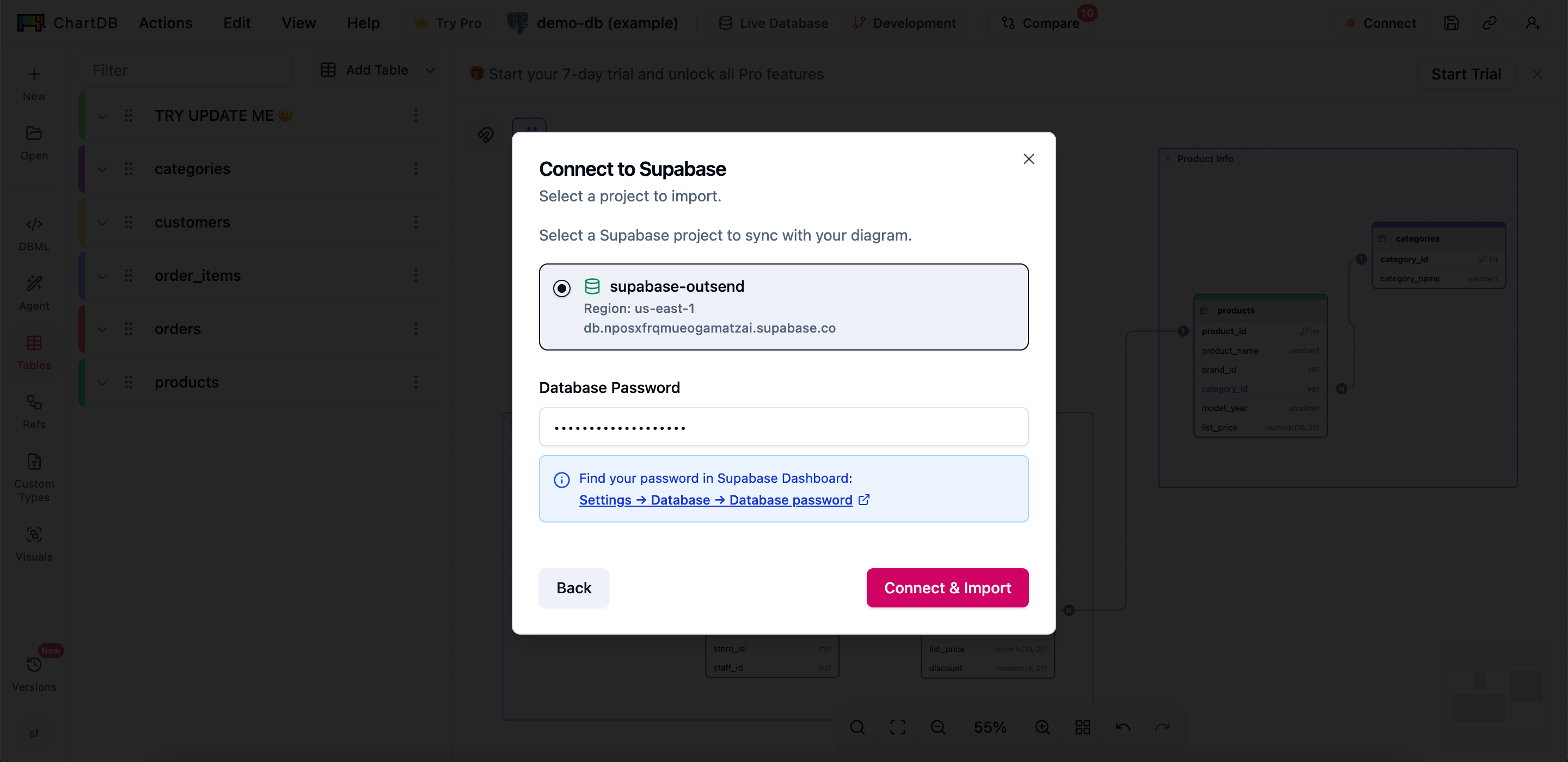
After successful authentication, you'll see a list of your Supabase projects. Select the project you want to visualize.
Each project card shows:
* Project name
* Region
* Database host
Then enter your Supabase database password in the password field.
**Where to find your password:** Click the link in the info box to go directly to your Supabase Dashboard: **Settings > Database > Database password**
A popup window will open directing you to the Supabase authentication page. Log in with your Supabase account credentials and authorize ChartDB to access your projects.
Make sure popups are enabled for ChartDB in your browser.
After successful authentication, you'll see a list of your Supabase projects. Select the project you want to visualize.
Each project card shows:
* Project name
* Region
* Database host
Then enter your Supabase database password in the password field.
**Where to find your password:** Click the link in the info box to go directly to your Supabase Dashboard: **Settings > Database > Database password**
 Click **Connect & Import** to start the synchronization process. You'll see a loading screen while ChartDB imports your schema metadata.
Once complete, you'll see a success message. ChartDB will automatically redirect you to your new diagram showing your Supabase database schema.
***
## Re-syncing Your Database
Your Supabase database automatically syncs every hour. You can also manually trigger a re-sync at any time.
### Quick Re-sync from Toolbar
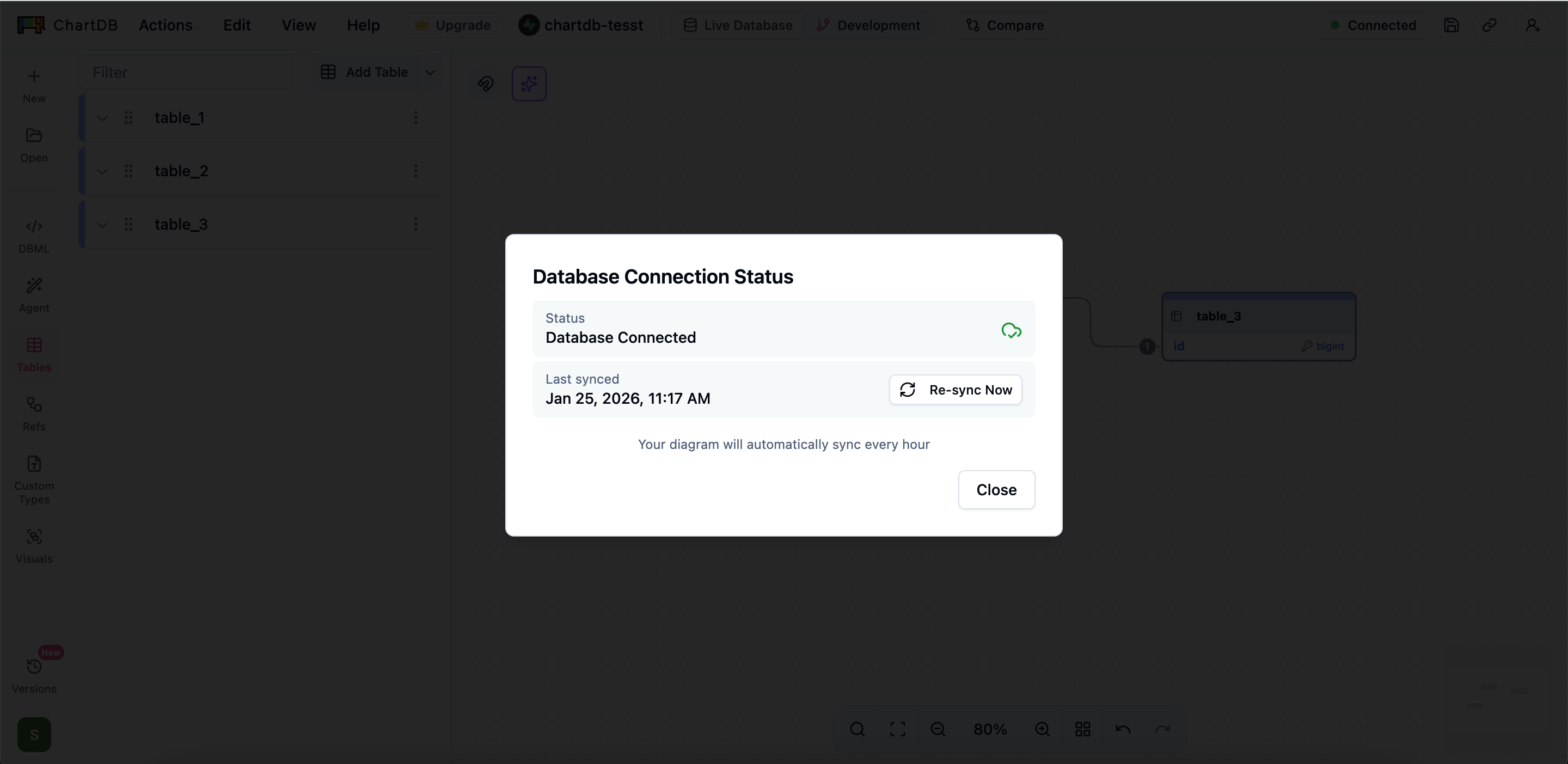
On your diagram page, click the **Connected** button (with a green cloud icon) in the top navigation bar.
In the popup, you'll see:
* **Database Connected** status with green checkmark
* **Last synced** timestamp
* **Re-sync Now** button
Click **Re-sync Now** to fetch the latest schema from Supabase.
Click **Connect & Import** to start the synchronization process. You'll see a loading screen while ChartDB imports your schema metadata.
Once complete, you'll see a success message. ChartDB will automatically redirect you to your new diagram showing your Supabase database schema.
***
## Re-syncing Your Database
Your Supabase database automatically syncs every hour. You can also manually trigger a re-sync at any time.
### Quick Re-sync from Toolbar
On your diagram page, click the **Connected** button (with a green cloud icon) in the top navigation bar.
In the popup, you'll see:
* **Database Connected** status with green checkmark
* **Last synced** timestamp
* **Re-sync Now** button
Click **Re-sync Now** to fetch the latest schema from Supabase.
 The page will reload with your updated schema.
### Full Re-sync from Database Settings
1. Click **Sync** or the database settings option from the diagram menu
2. The Supabase sync dialog will appear showing you're already connected
3. Click **Re-Sync Now** to refresh your schema
***
## Troubleshooting
If you see an "Invalid password" error:
1. Go to your [Supabase Dashboard](https://supabase.com/dashboard)
2. Navigate to your project's **Settings > Database**
3. Copy your database password (or reset it if needed)
4. Re-enter the correct password in ChartDB
If OAuth connection fails:
1. Ensure you're logged into Supabase
2. Check that your Supabase project is active (not paused)
3. Allow popups for ChartDB in your browser
4. Try again by clicking "Connect with Supabase"
If your projects don't appear after authentication:
1. Click **Retry** to refresh the project list
2. Verify your Supabase account has at least one active project
3. Check that your Supabase organization permissions allow API access
***
## User Flow Summary
| Step | Action | Screen |
| ---- | ------------------------------- | ------------------ |
| 1 | Create New Diagram | Homepage |
| 2 | Select Supabase | Database Selection |
| 3 | Choose Cloud Platforms | Import Method |
| 4 | Connect with Supabase | OAuth Connection |
| 5 | Authenticate | Supabase Popup |
| 6 | Select Project & Enter Password | Project & Password |
| 7 | Connect & Import | Syncing |
| 8 | View Diagram | Diagram Editor |
***
## Alternative: Manual SQL Import
If you prefer not to use OAuth or need more control over the import process, you can use the manual SQL query method. See the [Supabase Import Guide](/docs/import/supabase) for instructions on running the import query directly in the Supabase SQL Editor.
The page will reload with your updated schema.
### Full Re-sync from Database Settings
1. Click **Sync** or the database settings option from the diagram menu
2. The Supabase sync dialog will appear showing you're already connected
3. Click **Re-Sync Now** to refresh your schema
***
## Troubleshooting
If you see an "Invalid password" error:
1. Go to your [Supabase Dashboard](https://supabase.com/dashboard)
2. Navigate to your project's **Settings > Database**
3. Copy your database password (or reset it if needed)
4. Re-enter the correct password in ChartDB
If OAuth connection fails:
1. Ensure you're logged into Supabase
2. Check that your Supabase project is active (not paused)
3. Allow popups for ChartDB in your browser
4. Try again by clicking "Connect with Supabase"
If your projects don't appear after authentication:
1. Click **Retry** to refresh the project list
2. Verify your Supabase account has at least one active project
3. Check that your Supabase organization permissions allow API access
***
## User Flow Summary
| Step | Action | Screen |
| ---- | ------------------------------- | ------------------ |
| 1 | Create New Diagram | Homepage |
| 2 | Select Supabase | Database Selection |
| 3 | Choose Cloud Platforms | Import Method |
| 4 | Connect with Supabase | OAuth Connection |
| 5 | Authenticate | Supabase Popup |
| 6 | Select Project & Enter Password | Project & Password |
| 7 | Connect & Import | Syncing |
| 8 | View Diagram | Diagram Editor |
***
## Alternative: Manual SQL Import
If you prefer not to use OAuth or need more control over the import process, you can use the manual SQL query method. See the [Supabase Import Guide](/docs/import/supabase) for instructions on running the import query directly in the Supabase SQL Editor.