> ## Documentation Index
> Fetch the complete documentation index at: https://docs.chartdb.io/llms.txt
> Use this file to discover all available pages before exploring further.
# Import Diagram from JSON
> Import a previously exported ChartDB diagram from a JSON file to continue editing and visualizing your database.
 The **Import Diagram** feature is designed to work exclusively with JSON files
that have been exported from ChartDB using the [**Export
Diagram**](/export/json) feature. This feature is for importing saved ChartDB
diagrams, not for importing database schemas directly.
ChartDB lets you import a database diagram from a JSON file that was previously exported from ChartDB.
This feature restores a saved diagram, allowing you to continue your work and make further modifications.
Navigate to the **Share** menu in the top navigation bar. From the dropdown,
select **Import Diagram**.
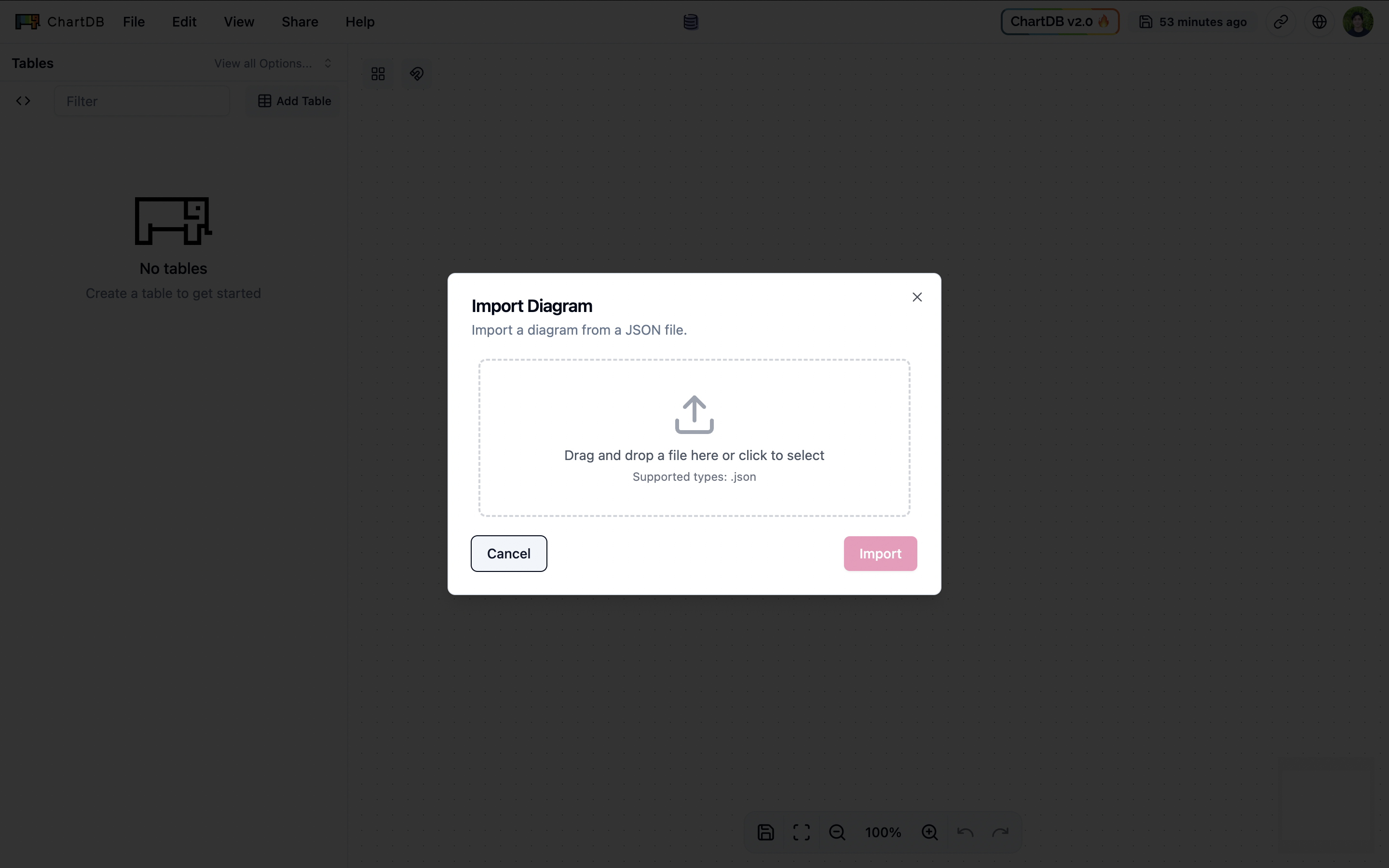
Click in the designated upload area or drag and drop your previously
exported `.json` file into the dialog.
Once the JSON file is uploaded, click the **Import** button. ChartDB will
then load the diagram from the JSON file, displaying your database schema
and relationships.
The **Import Diagram** feature is designed to work exclusively with JSON files
that have been exported from ChartDB using the [**Export
Diagram**](/export/json) feature. This feature is for importing saved ChartDB
diagrams, not for importing database schemas directly.
ChartDB lets you import a database diagram from a JSON file that was previously exported from ChartDB.
This feature restores a saved diagram, allowing you to continue your work and make further modifications.
Navigate to the **Share** menu in the top navigation bar. From the dropdown,
select **Import Diagram**.
Click in the designated upload area or drag and drop your previously
exported `.json` file into the dialog.
Once the JSON file is uploaded, click the **Import** button. ChartDB will
then load the diagram from the JSON file, displaying your database schema
and relationships.