> ## Documentation Index
> Fetch the complete documentation index at: https://docs.chartdb.io/llms.txt
> Use this file to discover all available pages before exploring further.
# Export Diagram as SQL
> Generate SQL scripts from your ChartDB diagrams to quickly deploy your database schema.
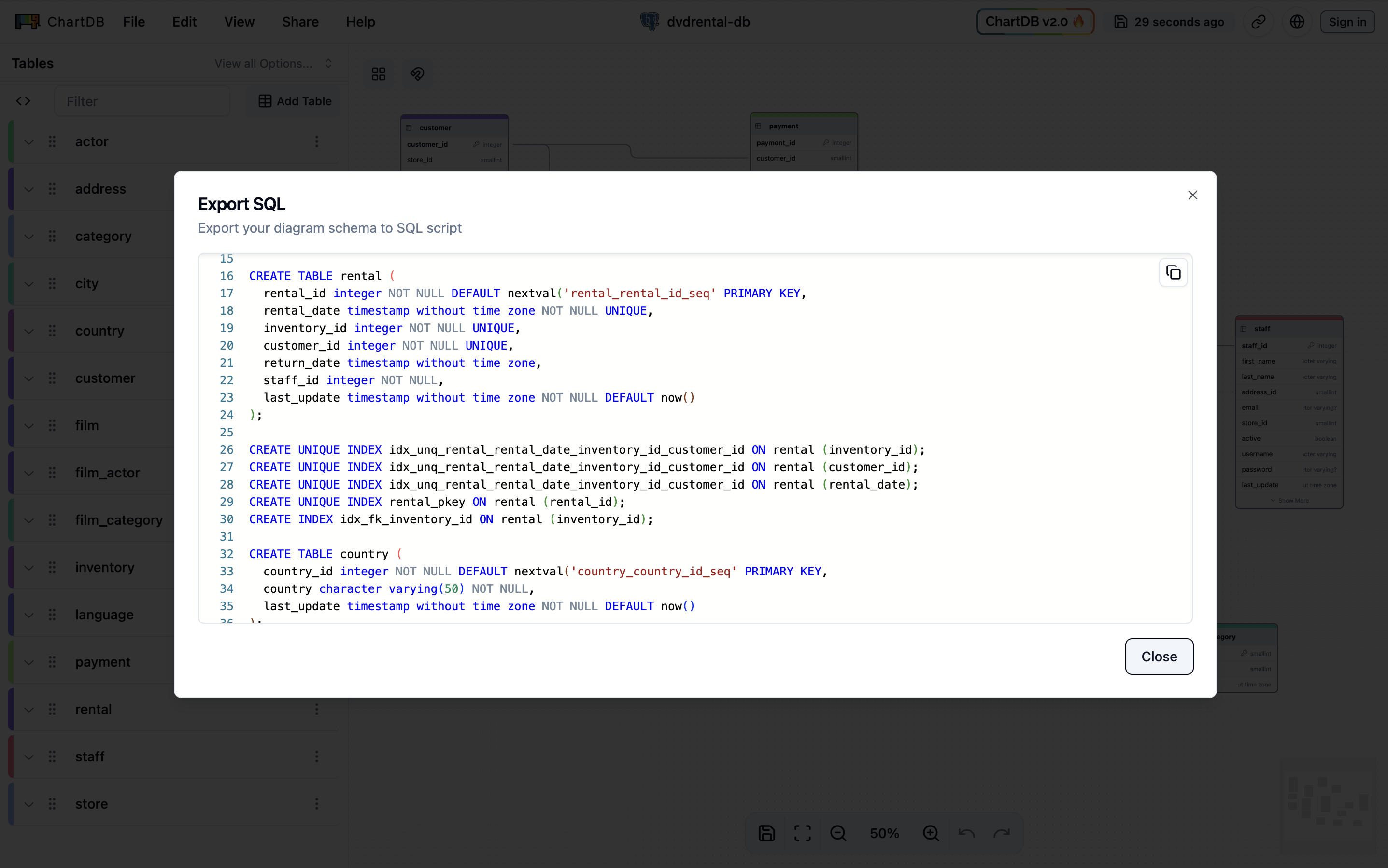 The SQL scripts generated by ChartDB are **schema definitions based on your
diagram**. They are intended to help you create the structure in your
database. **These scripts are not meant for data migration or direct execution
on production databases without review.**
Navigate to the **File** menu in the top navigation bar and hover over **Export SQL**.
Select your preferred SQL dialect from the submenu:
The SQL scripts generated by ChartDB are **schema definitions based on your
diagram**. They are intended to help you create the structure in your
database. **These scripts are not meant for data migration or direct execution
on production databases without review.**
Navigate to the **File** menu in the top navigation bar and hover over **Export SQL**.
Select your preferred SQL dialect from the submenu:
- Generic SQL: Provides standard SQL compatible across most database systems.
- PostgreSQL, MySQL, SQL Server, MariaDB, SQLite: Generates SQL tailored to specific database systems.
PostgreSQL, MySQL, SQL Server, MariaDB, and SQLite exports are available **exclusively for signed-in users**. Generic SQL export is available for all users.
A modal window will appear displaying the generated SQL script in a text area. Click the **Copy** button to copy the script to your clipboard.