> ## Documentation Index
> Fetch the complete documentation index at: https://docs.chartdb.io/llms.txt
> Use this file to discover all available pages before exploring further.
# Export Diagram as JSON
> Learn how to export your ChartDB diagram as a JSON file for safekeeping and future modifications.
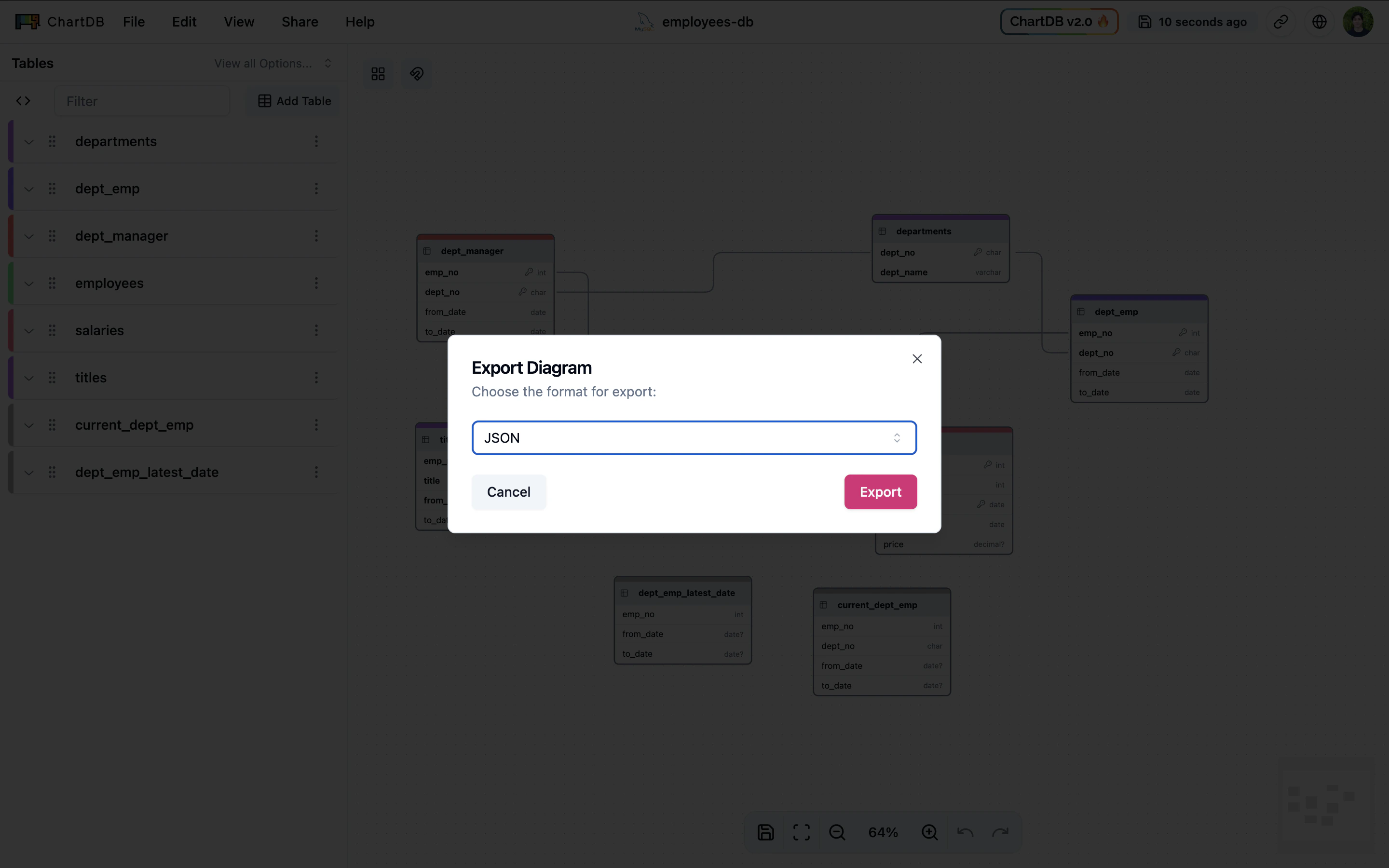 Exporting your current diagram a JSON file is useful for creating backups of your work or saving a specific state.
You can later re-import and continue editing.
The Export Diagram (JSON) feature requires an upgraded subscription on ChartDB Cloud. See our [Cloud vs Self-Hosted](/docs/cloud-vs-self-hosted) documentation for more details.
Navigate to the **Share** menu located in the top navigation bar. From the
dropdown menu, select **Export Diagram**.
In the "Export Diagram" interface, you will see the option to export as
JSON. Click the **Export** button.
Your browser will prompt you to save a `.json` file. This file contains your
diagram's data in JSON format.
The JSON file exported using this feature is **specifically designed for
re-importing diagrams back into ChartDB**. This JSON format is **different**
from the JSON structure used when initially importing a database schema into
ChartDB via SQL scripts. Do not attempt to use exported diagram JSON files for
database schema import via SQL script methods.
## Next Steps
Now that you have successfully exported your diagram as a JSON file, save it in a secure and accessible location on your local machine. When you are ready to resume working on your diagram or wish to make further edits, you can easily import this JSON file back into ChartDB.
Learn how to import your exported JSON diagram back into ChartDB to continue
editing and visualizing your database.
Exporting your current diagram a JSON file is useful for creating backups of your work or saving a specific state.
You can later re-import and continue editing.
The Export Diagram (JSON) feature requires an upgraded subscription on ChartDB Cloud. See our [Cloud vs Self-Hosted](/docs/cloud-vs-self-hosted) documentation for more details.
Navigate to the **Share** menu located in the top navigation bar. From the
dropdown menu, select **Export Diagram**.
In the "Export Diagram" interface, you will see the option to export as
JSON. Click the **Export** button.
Your browser will prompt you to save a `.json` file. This file contains your
diagram's data in JSON format.
The JSON file exported using this feature is **specifically designed for
re-importing diagrams back into ChartDB**. This JSON format is **different**
from the JSON structure used when initially importing a database schema into
ChartDB via SQL scripts. Do not attempt to use exported diagram JSON files for
database schema import via SQL script methods.
## Next Steps
Now that you have successfully exported your diagram as a JSON file, save it in a secure and accessible location on your local machine. When you are ready to resume working on your diagram or wish to make further edits, you can easily import this JSON file back into ChartDB.
Learn how to import your exported JSON diagram back into ChartDB to continue
editing and visualizing your database.